
Using assets in slides as smart elements

How to use assets from Seidat Database as smart elements on your slides.
Benefits of using assets
Dynamic content: assets data get updated automatically across presentations if changed in collections.
Switch logic: you can present multiple assets in one slide instead of creating a slide for each of the assets.
Adding Assets to the Slide
Navigate to the Slide edit view (see gif 1)
Click "Add asset" and select which collection you want to add and which assets from that collection
Once an asset is added it will be visible in Properties (square icon in the top right, assets can be found in the bottom). You can also re-ordet the assets by simply dragging and dropping them.
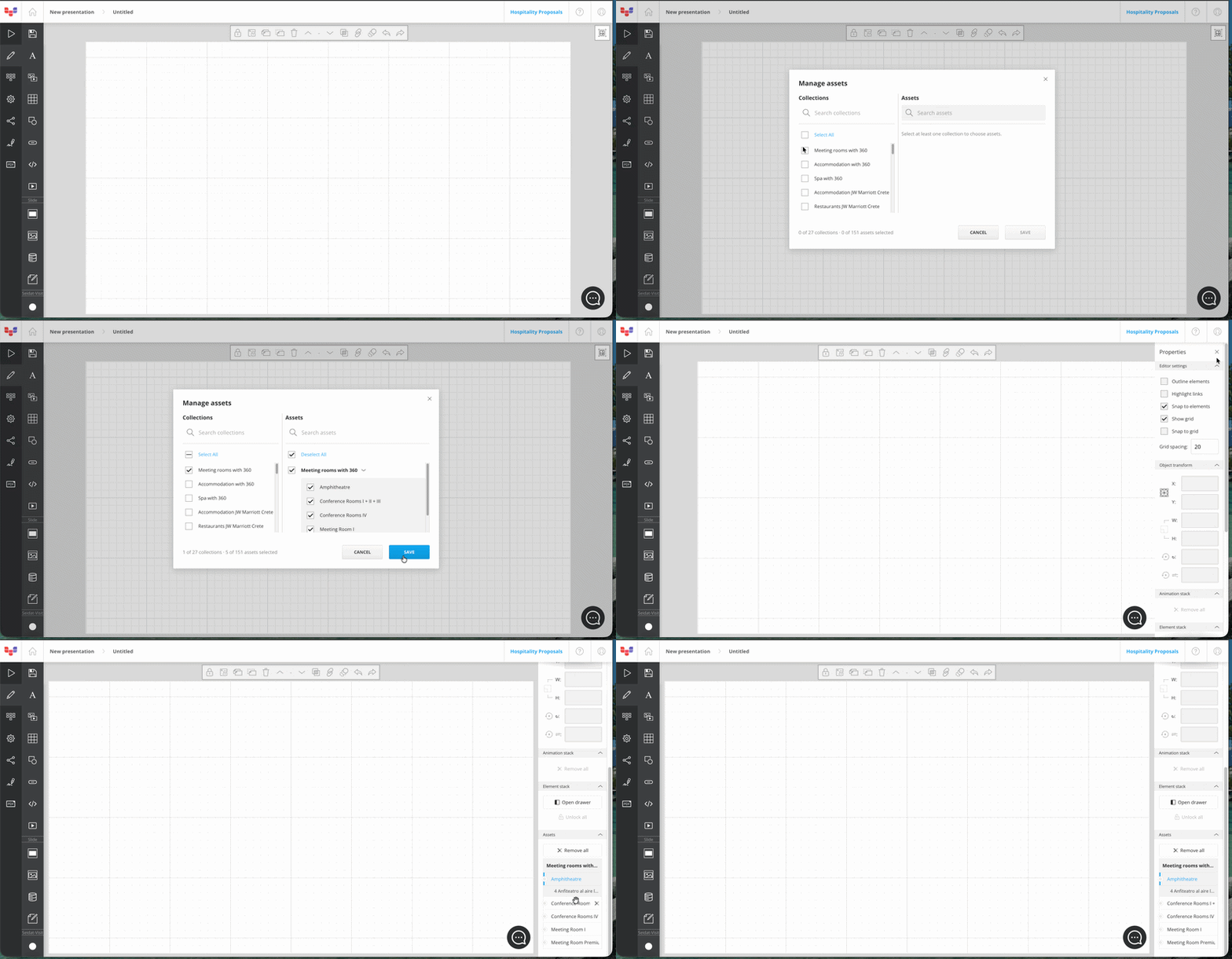
(gif 1)
Using Assets in the Slide
Text and Numbers: once adding the text, select “Insert asset” at the top of the slide editor. You can tell that a piece of text is a smart element from the pink arrows (see gif 2).
Iframe: once iframe is added, select “Insert asset” at the top of the slide editor.
Media: In “Insert Media” view, choose “Collections” and add an asset from the suggested list.
Link to slide: A hotspot's link to slide - option can also target a specific asset (room). Clicking the hotspot — or opening the slide with the ?asset= URL parameter — lands the viewer on that room. Here is how to use it: Slide links.
Added asset media cannot be cropped; therefore, all asset images will follow 'fit' logic. Boolean-type assets can only be used in charts. 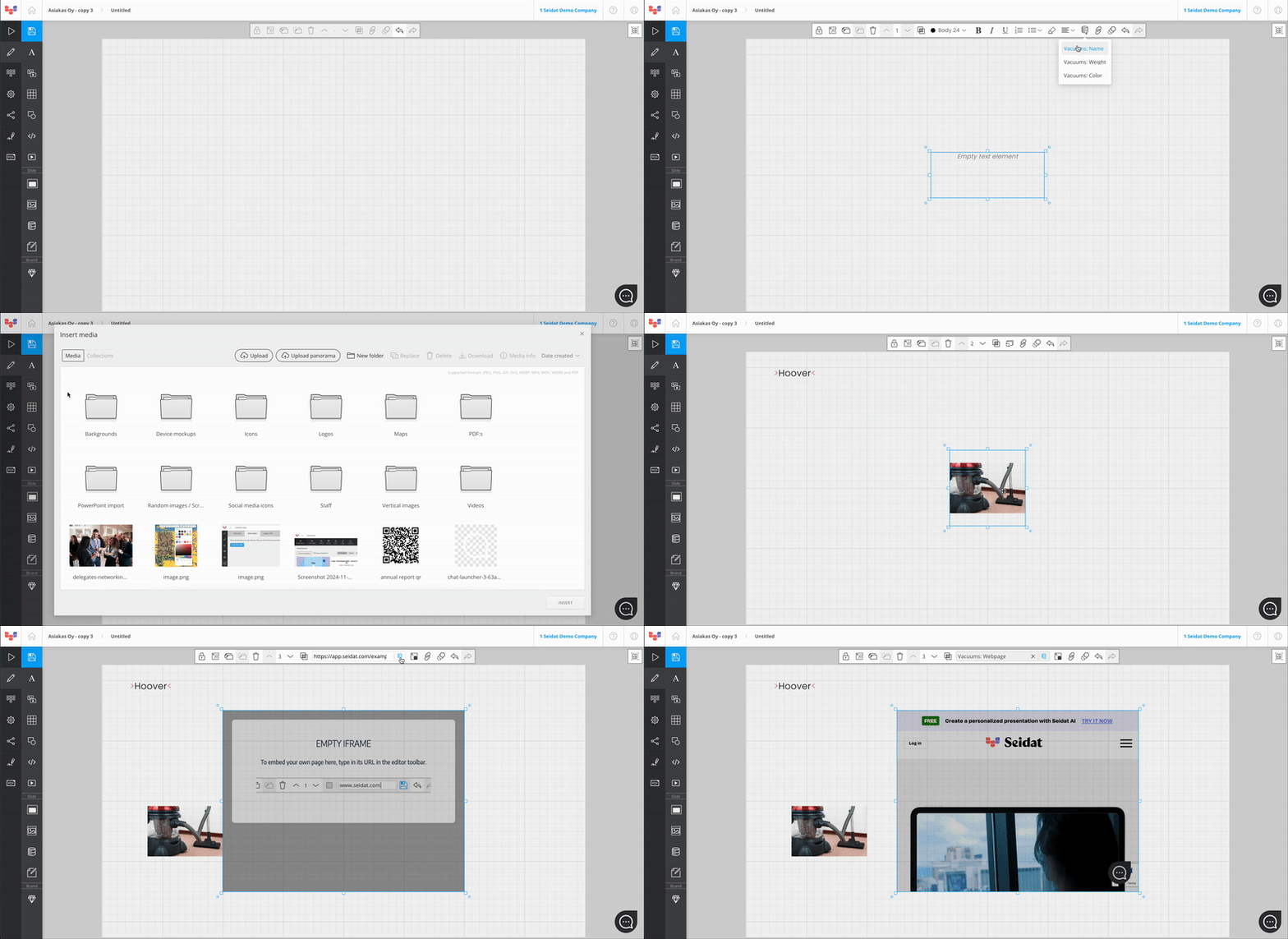
(gif 2)
Play mode
Once assets are added to the slide, you can view all of them in the play mode. In live view the rooms appear in a navigation menu, listed in the asset-stack order set in the editor. The menu hides any room that has no photo (and collections with no visible asset).
In the switch you can also see:
chart icon: provides more information about assets
marker icon: allows you to view more detailed plans
globe icon: allows you to change languages (if multilanguage presentations are enabled)
share icon: if sharing to a specific page and image position is enabled in Brand Settings, you can create a shareable link from the share icon.
HOX! You cannot control asset's while in presenter window, but you can when presenting via shared link.
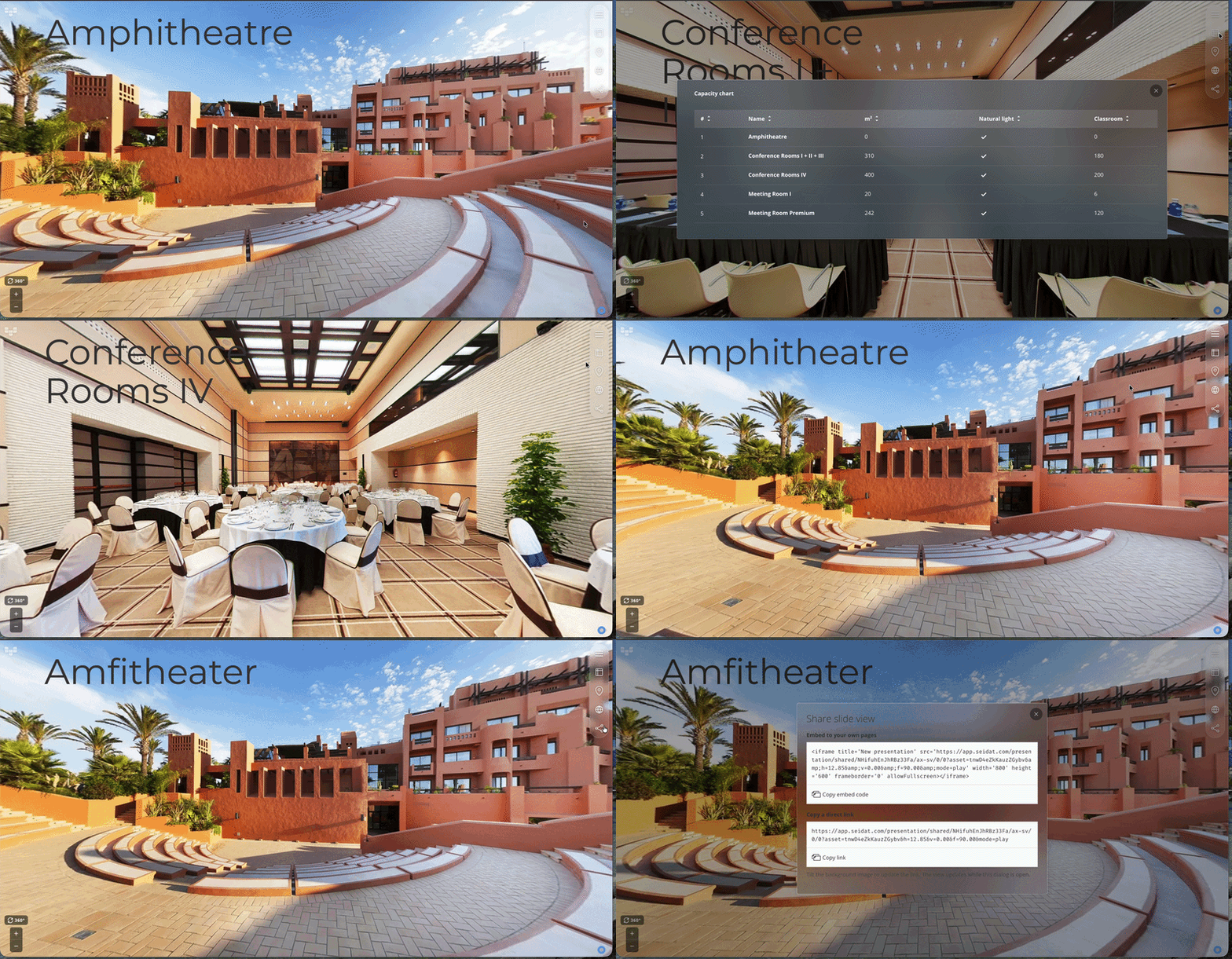
(gif 3)